
Table of Contents
- High-Resolution 12×36 Wedding Album PSD Templates
- Download 5 Professional 12×36 Wedding Album PSD Layouts (2026)
- How to Safely Use and Edit Downloaded 12×36 Album PSD Files
- Top Features and Highlights of These 12×36 Wedding Album PSD Templates
- Frequently Asked Questions
High-Resolution 12×36 Wedding Album PSD Templates
Whether you are a professional photographer or an aspiring designer, we all know that creating a high-end wedding album from scratch can be incredibly time-consuming. To help you speed up your workflow without sacrificing quality, I’m excited to share a valuable resource: five professionally crafted 12×36 inch PSD templates, available for free download.
These templates were designed with a “quality-first” mindset, ensuring a polished and elegant look that helps you deliver stunning results in less time. Because every wedding is unique, each file is fully editable. This gives you complete creative freedom to customize layouts, swap out backgrounds, and adjust every design element to match your client’s specific vision.
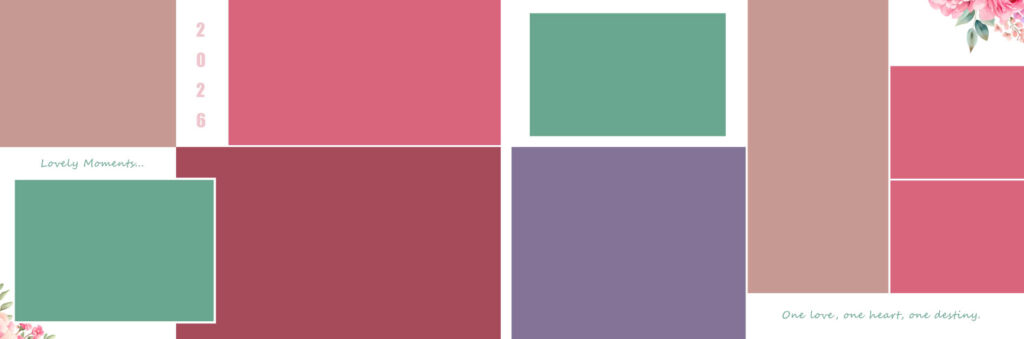
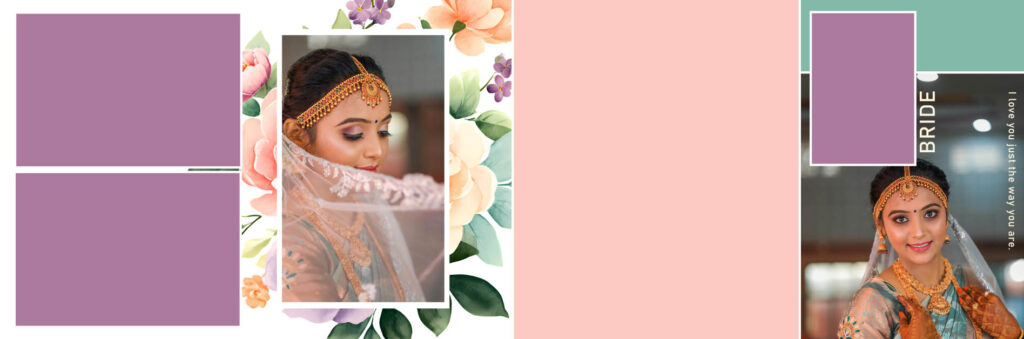
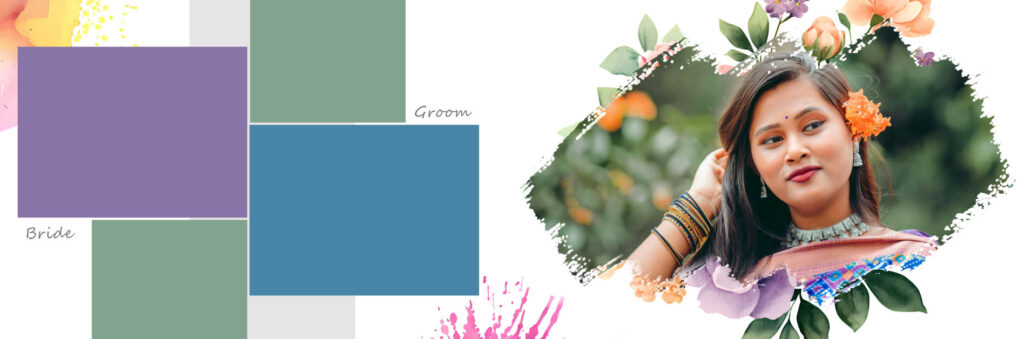
Quality is everything in professional printing. That is why all five templates are set at 300 DPI resolution, guaranteeing sharp, clear, and print-ready results even for large-format albums. To make things even easier, I’ve included a preview of each design below so you can see exactly what you’re getting before you start your download.
I hope these help you spend less time behind the screen and more time focusing on your creative passion.
Screenshots of Royal 2026 Wedding Album 12×36 PSD Designs:

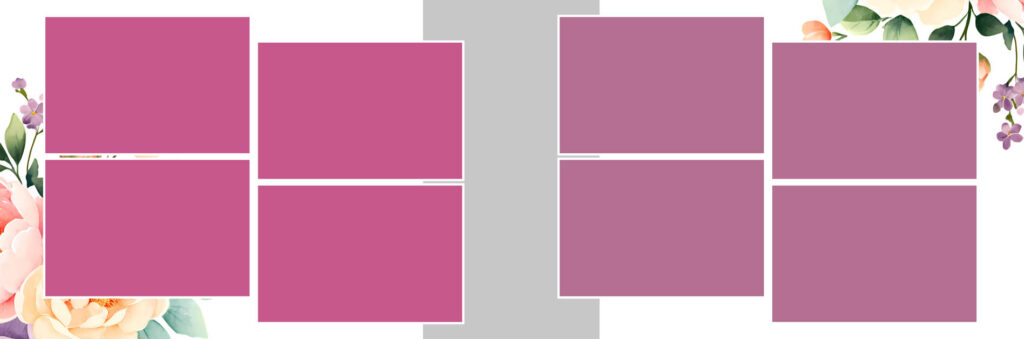
Download 5 Professional 12×36 Wedding Album PSD Layouts (2026)
Getting Started: How to Use Your New Templates
Once you hit the download button, you’ll receive everything in a single, organized ZIP folder. To get started, just right-click to extract the files using WinRAR or your favorite unzip tool. Inside, you’ll find all five PSD files ready to go—no messy folders or missing parts. Just drag them into Adobe Photoshop, and you’re ready to start creating.
Designed to Give You a Head Start
We’ve all been there: staring at a blank canvas, trying to figure out where to place the first photo. These templates are meant to take that pressure off. Whether you’re knee-deep in a wedding season, putting together a family portrait collection, or documenting a special event, having a solid foundation makes the whole process feel less like a chore.
Instead of getting bogged down in the technical “setup” phase, you can jump straight to the fun part—the storytelling. You have the freedom to play with color palettes, rearrange the flow of the images, and tweak the details until the design perfectly matches your client’s personality.
Work Smarter, Not Harder
If you’re looking to professionalize your workflow and reclaim some of your spare time, these templates are a total game-changer. It’s the easiest way to ensure your albums look polished and high-end without spending ten hours on a single spread.
I hope these layouts help you stay inspired and make your next project a little smoother!

How to Safely Use and Edit Downloaded 12×36 Album PSD Files
Before opening and using downloaded album PSD files, an album designer should take a few important precautions. These small steps can save time, protect your computer, and prevent problems while working on client projects.
The first thing you should do after downloading a PSD file is scan it with reliable antivirus software. Sometimes files downloaded from unknown websites may contain harmful content. Even if the website looks trustworthy, it is always better to be safe. A quick scan only takes a few seconds and gives you peace of mind before you open the file in your editing software.
Next, make sure to extract the ZIP or RAR file properly. Many album PSD files come in compressed folders. Use trusted software like WinRAR or 7-Zip to extract the contents. Avoid opening or editing the PSD directly from the compressed folder because this can sometimes cause missing layers, font errors, or slow performance.
Once the files are extracted, create a backup copy before making any changes. Save the original PSD templates in a separate folder and work only on duplicate copies. This is very helpful if you make a mistake or want to return to the original design later. Many designers regret not keeping the original file when they accidentally overwrite it.
You should also check whether all required fonts, textures, and linked elements are included in the download package. Some PSD files use custom fonts or external decorative elements. If these are missing, the design may not appear correctly. Open the PSD in Adobe Photoshop and carefully look through the layers panel. If there are missing fonts, install them before starting your work.
Another important precaution is to confirm that the PSD size and resolution match your project requirements. For album printing, the file should usually be 12×36 inches at 300 DPI. If the resolution is lower, the final print may look blurry or pixelated. Always check the image size settings before investing time in editing.
It is also a good idea to organize the downloaded files into separate folders. For example, you can create folders for wedding albums, engagement albums, baby albums, or background templates. This simple habit makes it easier to find the right design when you need it later.
Finally, never rush to start editing immediately. Spend a few minutes exploring the PSD file, understanding the layer structure, and checking which parts are editable. A well-organized PSD can make your work much faster, but only if you understand how it is built. Taking these precautions after downloading album PSD files will help you work more smoothly, avoid unnecessary mistakes, and deliver better results to your clients.
Top Features and Highlights of These 12×36 Wedding Album PSD Templates
- 5 professionally designed 12×36 wedding album PSD templates included
- Completely free to download and use
- High-resolution 300 DPI quality for sharp, print-ready results
- Fully editable PSD files with organized layers
- Easy to customize backgrounds, colors, text, and photo placements
- Ideal for wedding albums, engagement shoots, and special event photography
- Saves time and helps designers create professional layouts faster
- Includes preview images of all five album designs before download
- Delivered in a single ZIP folder for easy access and organization
- Compatible with Adobe Photoshop
- Files can be extracted using WinRAR or 7-Zip
- Helps eliminate the stress of starting from a blank canvas
- Gives designers more time to focus on creativity and storytelling
- Suitable for both professional photographers and beginner album designers
- Important safety tips included for using downloaded PSD files correctly
- Recommends scanning downloaded files with antivirus software before opening
- Suggests creating backup copies of original PSD templates before editing
- Advises checking for missing fonts, textures, and linked elements
- Encourages confirming the file size is 12×36 inches at 300 DPI before editing
- Includes tips for organizing downloaded templates into separate folders for faster workflow
Frequently Asked Questions
- Are these 12×36 PSD templates completely free to use?
Yes! You can download all five templates at no cost. They are designed to help both professional photographers and beginners create high-quality wedding albums without a massive investment. - Which software do I need to edit these files?
These templates are created as PSD files, so they are fully compatible with Adobe Photoshop. While some other photo editing tools may open PSDs, we recommend Photoshop to ensure that all layers, fonts, and effects operate properly. - What is the resolution of these album templates?
Every template in this pack is set to 300 DPI (Dots Per Inch). This is the industry standard for professional printing, ensuring your 12×36 inch album prints look sharp, clear, and professional. - How do I open the files after downloading?
The templates are delivered in a single ZIP folder to keep the file size manageable. Once downloaded, simply right-click the folder and select “Extract” using a tool like WinRAR or 7-Zip. You can then drag the individual PSD files into Photoshop.