Table of Contents
- Why Choose 12×36 Album PSD for Wedding Album Design?
- Bringing Your 12×36 Wedding Album PSDs to Life: A Step-by-Step Guide
- How to Safely Use and Edit Downloaded 12×36 Album PSD Files
- Frequently Asked Questions
Why Choose 12×36 Album PSD for Wedding Album Design?
A wedding is a beautiful tapestry of fleeting moments, raw emotions, and grand celebrations. Capturing these memories is only the first half of a photographer’s job; the real magic happens when those images are curated into a timeless keepsake. This is exactly why the 12×36 album size has established itself as the undisputed gold standard in the wedding industry. When combined with the flexibility of layered Photoshop documents (PSDs), this format transforms a traditional photo album into a breathtaking, cinematic masterpiece.
The Power of Panoramic Storytelling
The most striking feature of a 12×36 layout is its expansive, widescreen canvas. Wedding photography frequently features grand architectural venues, beautiful landscape backgrounds, and large family portraits that require space to truly shine. A 12×36 spread allows you to display a stunning panoramic shot across a single seamless page without losing critical details in the center crease. This format provides an immersive, cinematic quality that smaller or square formats simply cannot replicate, instantly drawing the viewer into the emotion of the day.
Seamless Narrative Flexibility
Beyond showcasing single large images, the wide-format layout offers an incredible canvas for chronological storytelling. A designer can construct a series of events on a single 12×36 spread, including the bride’s entrance, the groom’s reaction, and the vow exchange. This generous space allows for a harmonious blend of wide establishing shots, candid close-ups, and intricate detail photos without looking cluttered. It gives the designer the visual real estate needed to build a clean narrative arc for each segment of the wedding.
Absolute Creative Control with PSD Layouts
Choosing a PSD format means you are opting for ultimate design freedom. Unlike rigid album software or flat image files, layered PSD templates give you total control over every visual element. Designers can effortlessly adjust background colors to match the wedding theme, modify typography, tweak frames, and apply custom effects. Features like Smart Objects within Photoshop make swapping out placeholder images a matter of a few clicks, drastically accelerating the editing process.
Print-Ready Perfection and Efficiency
Designing a luxury album from scratch can take countless hours, but high-quality 12×36 PSD templates streamline your workflow without sacrificing quality. These files come pre-configured with the precise dimensions, bleed margins, and high-resolution DPI settings required by professional printing labs. By utilizing these templates, you ensure a polished, cohesive aesthetic across the entire album while delivering a premium, print-ready product to your clients in a fraction of the time.
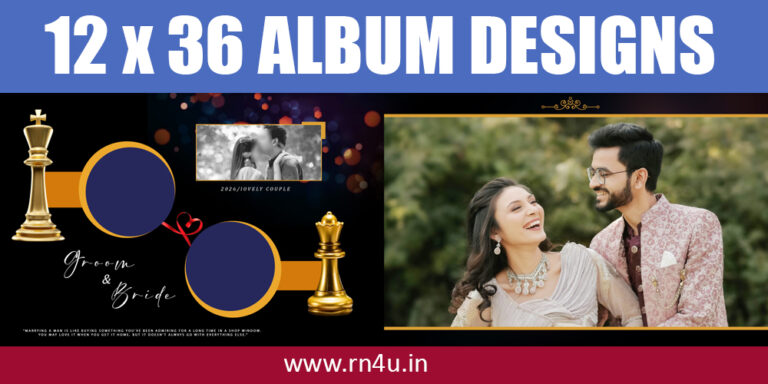
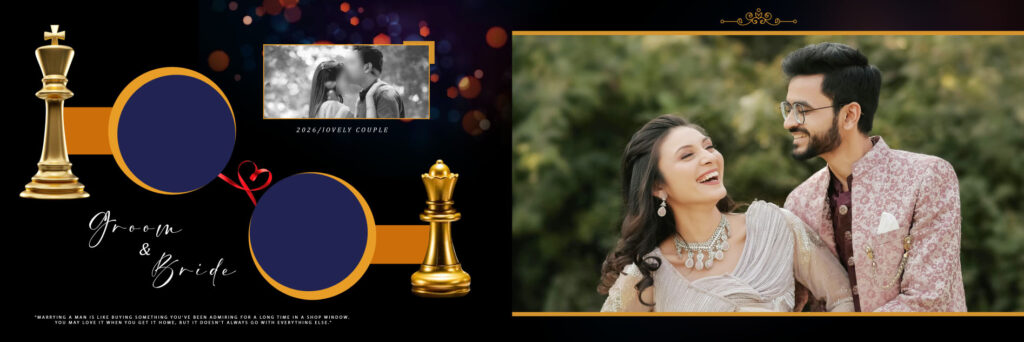
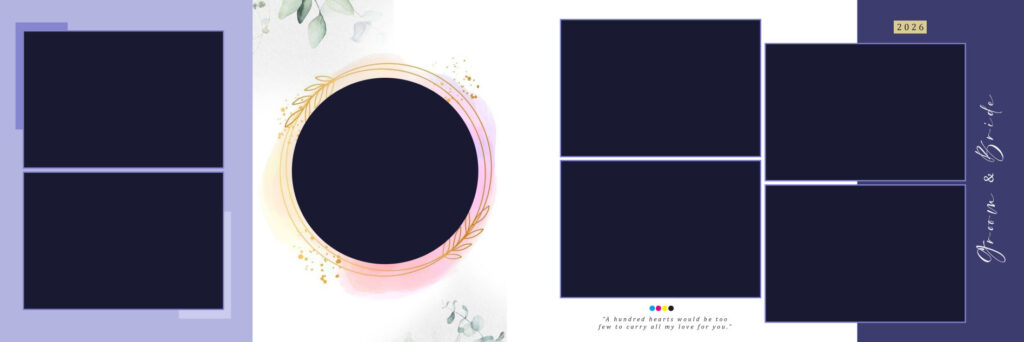
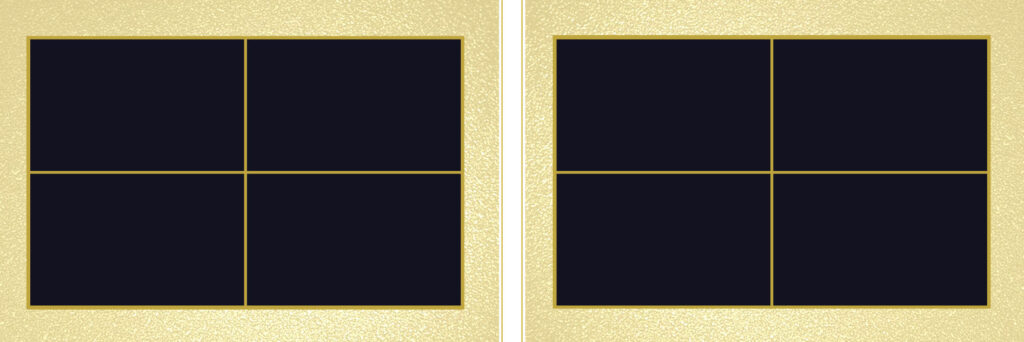
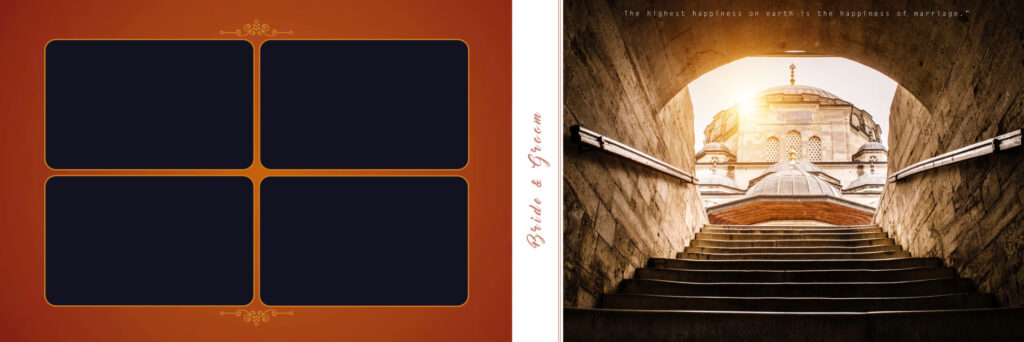
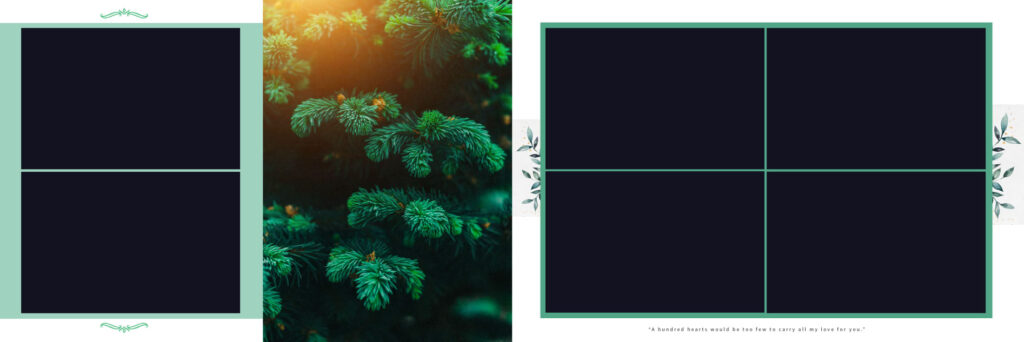
Screenshots of Beautiful 2026 Wedding Album 12×36 PSD Designs:
Bringing Your 12×36 Wedding Album PSDs to Life: A Step-by-Step Guide
Designing a wedding album isn’t just about dropping photos into empty boxes—it’s about weaving a love story that will be cherished for generations. While high-quality 12×36 PSD templates provide an incredible canvas, the real magic happens when you infuse them with your unique creative touch.
Here is how to transform a raw layout into a breathtaking, print-ready masterpiece.
1. Get Familiar with Your Canvas
Before jumping straight into editing, take a breath and explore. Open your PSD in Photoshop and spend a minute reviewing the layer panel. Take note of how the photographs, typography, decorative components, and overlays are organized. Think of this as mapping out your creative strategy before you lay down the first brushstroke.
2. Breathe Life into the Layout (Smart Objects)
This is where the transformation begins. Instead of clumsily hacking away at the template, look for the Smart Object layers. Double-click the thumbnail, drop your couple’s photograph into the window, scale it to perfection, and hit save. Because you’re working with Smart Objects, your image retains its crisp, professional 300 DPI quality without any distortion or pixelation.
3. Paint with Light and Tone (Color Grading)
A single 12×36 spread often features multiple photos, sometimes taken in slightly different lighting. To make them look like they truly belong together, use Adjustment Layers like Curves, Selective Color, or Color Balance. Subtle grading ensures a seamless, harmonious mood across the entire layout, giving it that high-end, luxury magazine feel.
4. Give the Words a Voice (Typography)
The right font speaks volumes before a single word is read. If the wedding was a grand, traditional affair, lean into elegant serif fonts to evoke timeless romance. For sleek, contemporary weddings, a clean sans-serif keeps things beautifully minimal. Whatever you choose, ensure the captions are legible and have room to breathe—the photos should always remain the main characters.
5. Set the Stage with Subtle Backgrounds
A great background is like a supportive friend—always there to make you look good, but never stealing the spotlight. Enhance your layout with soft, atmospheric gradients or gentle textures. A beautiful background should quietly tie the images together and add depth, rather than cluttering the visual space.
6. Mind the Boundaries (Safe Zones)
Before you fall completely in love with your design, do a quick practical check. Always keep vital details, text, and—most importantly—faces well within the safe zone margins. You want to ensure that no precious memory gets accidentally cut off by the print lab’s heavy machinery or lost in the central fold of the album crease.
7. The Final Polish & Export
Once your masterpiece is complete, save the layered PSD file first—this is your sacred master copy. From there, export high-resolution, uncompressed JPEGs or press-ready PDFs for the printing lab. For client previews, export lightweight, smaller versions that are easy to email or upload. This streamlined workflow integrates beautifully with professional album design software, ensuring a flawless journey from your screen to the client’s hands.
How to Safely Use and Edit Downloaded 12×36 Album PSD Files
Downloading pre-made 12×36 wedding album PSD files is a fantastic way to supercharge your creative workflow and save hours of manual layout design. However, bringing external files into your active digital workspace requires a bit of smart handling.
To protect your computer and ensure your design quality remains flawless, keep these simple, human-centric tips in mind.
1. Guard Your Digital Workspace
Always download templates from trusted, reputable creative platforms. Before unzipping any package, run a quick scan with your antivirus software. Be incredibly cautious of downloads that try to bundle executable files; a genuine Photoshop template will only ever be a .psd, .psdt, or a standard compressed .zip archive. If a site asks you to install software just to access a template, walk away.
2. Lock in a Clean Master Copy
The absolute first thing you should do after opening a newly downloaded PSD is duplicate it. Go to File > Save As and create a dedicated working copy for your project (for example). Leaving the original template completely untouched gives you a perfect safety net to fall back on if a layer gets messed up or an edit goes sideways later.
3. Double-Check the Technical Specs
Don’t assume every file on the internet is perfectly optimized for print. Go to Image > Image Size and verify that the canvas is exactly 12×36 inches at a crisp 300 DPI. Confirming these specifications before you insert your high-resolution photos guarantees that your final printed layout won’t turn out blurry or pixelated.
4. Play Nice with the Layers
Respect the template’s structure by editing non-destructively. Use Layer Masks instead of the eraser tool, and lean on Adjustment Layers for color grading instead of changing image properties permanently. This keeps your file flexible, making it incredibly easy to tweak elements as you tailor the template to match your couple’s unique style.

Password Here : 21211821
Frequently Asked Questions
1. What is included in the 2026 12×36 wedding album PSD template pack?
The pack usually includes fully editable PSD sheets, wedding album layouts, cover designs, background elements, cliparts, and HD decorative assets for Photoshop editing.
2. Are these 12×36 PSD templates editable?
Yes, all templates are fully editable in Adobe Photoshop. You can change photos, text, colors, backgrounds, and design elements easily.
3. Which Photoshop version supports these templates?
Most 2026 wedding album PSD templates support Adobe Photoshop CS6 and all newer CC versions.
4. What is the size of a 12×36 wedding album design?
A 12×36 album sheet means the full spread size is 12 inches height × 36 inches width, commonly used for panoramic wedding album printing.