
Table of Contents
- Why Choose Our 16×24 PSD Collections?
- Complete Creative Control with Fully Editable Layers
- High-Resolution Quality for Professional Printing
- How to Download and Access Your Templates
- Looking Forward: 2026 Wedding Trends and Beyond
- Mastering the 16×24 Horizon: Essential Precautions for New Album Designers
- Conclusion
- Frequently Asked Questions
If you are a professional wedding photographer or a graphic designer looking for “free wedding photo album design PSD templates in 16×24 collections,” you have arrived at the perfect destination. Creating a wedding album is more than just placing photos on a page; it is about storytelling, preserving memories, and presenting a couple’s special day in a format that will last for generations. To help you achieve your design goals with efficiency and flair, we are providing an extensive collection of professional, modern, and traditional PSD templates that are available for download at no cost.
Why Choose Our 16×24 PSD Collections?
The wedding industry is constantly evolving, and the expectations for high-end, high-resolution album designs are higher than ever. Whether you are working on a panoramic spread or a 16×24 traditional classic layout, having a solid foundation is essential. Our templates are specifically designed to meet the rigorous standards of modern wedding photography. By using these pre-made sheets, you can significantly reduce your editing time while maintaining a consistent, sophisticated aesthetic across the entire album.
These templates are particularly useful for Indian wedding photography, which often requires vibrant colors, intricate borders, and space for a large volume of images. The “16×24 Indian Wedding” collection focuses on these cultural nuances, providing layouts that accommodate everything from the grand ceremony to the intimate details of the jewelry and decor.
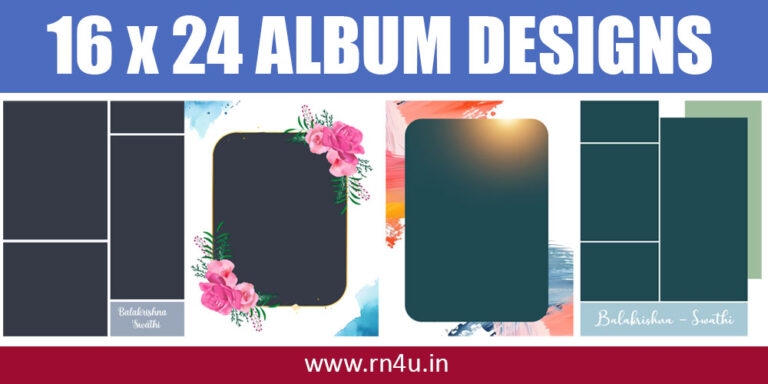
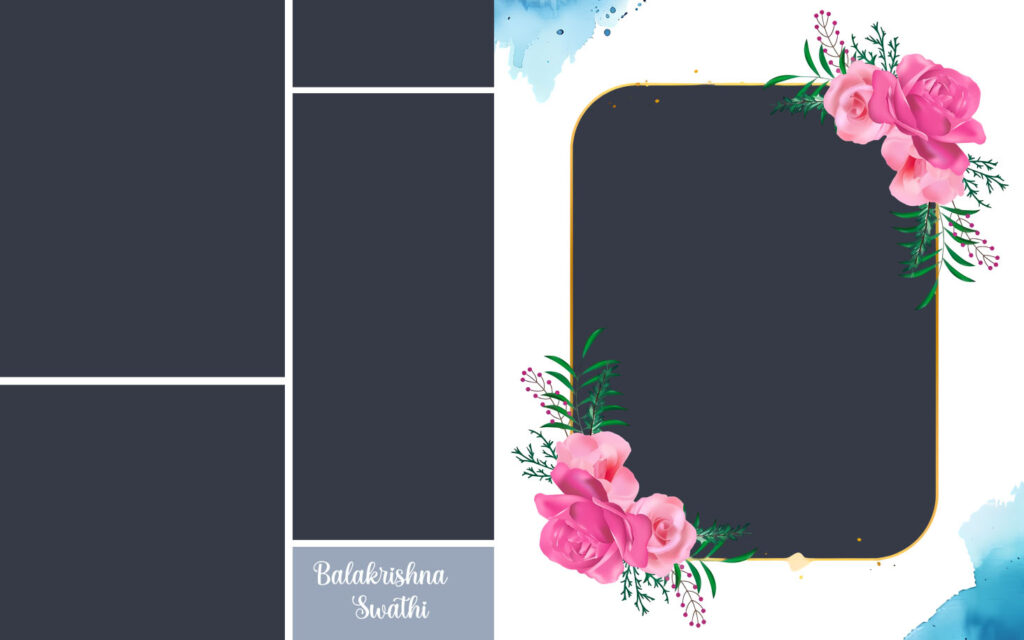
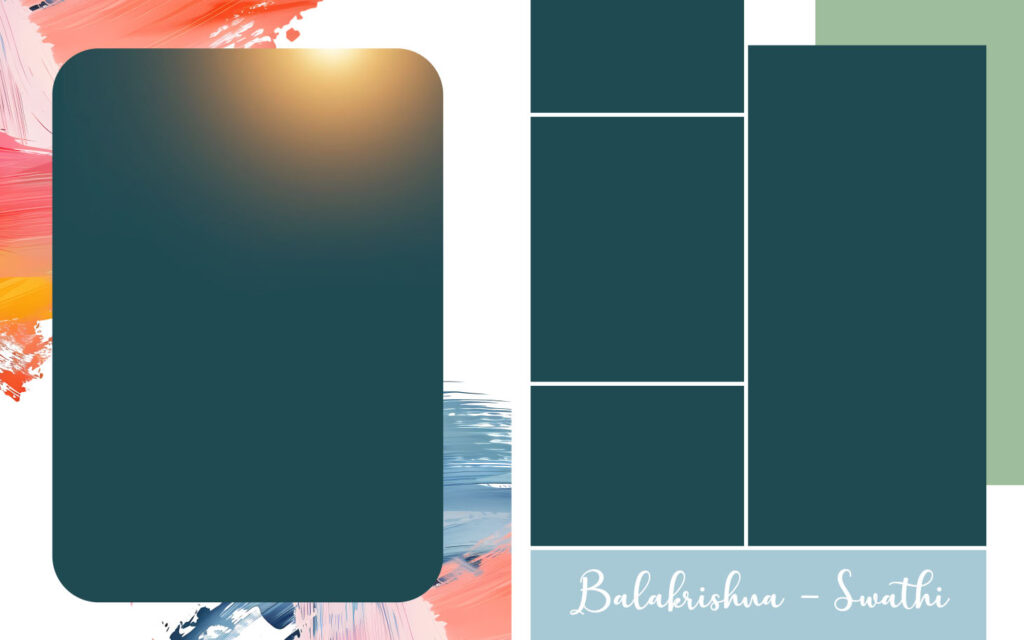
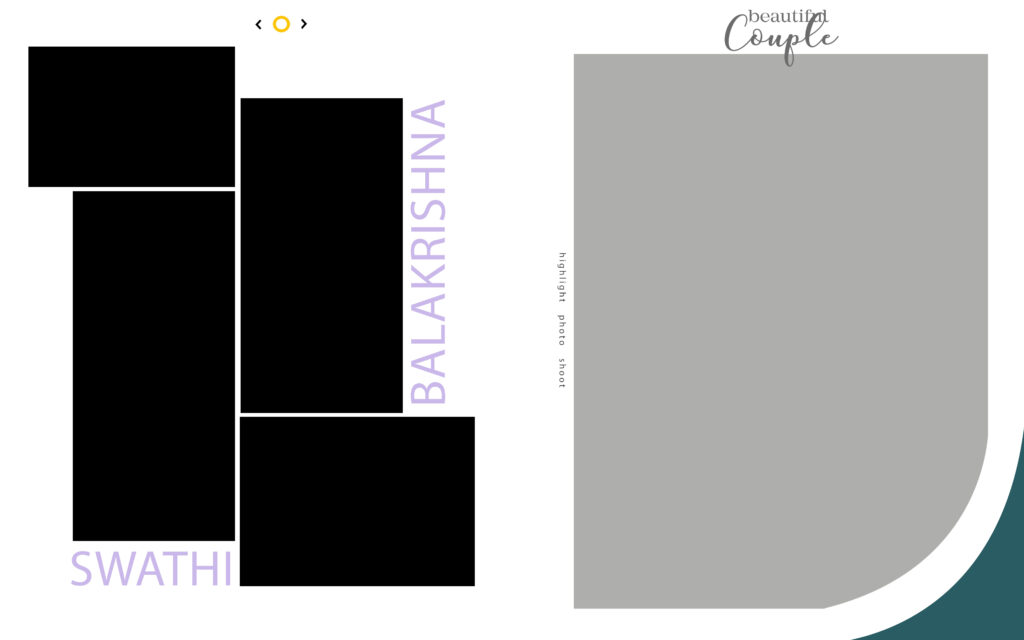
Screenshots of New 2026 Wedding Album 16×24 PSD Designs:


Complete Creative Control with Fully Editable Layers
One of the most significant advantages of our wedding photo album design collection is that every single file is provided in a fully editable PSD format. Unlike flattened images or basic JPEG templates, our files contain separated layers. This means that after you download the sheets, you have total control over every element within the design.
Using Adobe Photoshop, you can easily modify the background colors to match the theme of the wedding, resize the photo frames to fit specific shots, and adjust the typography or decorative elements. If you feel a specific flourish doesn’t fit the couple’s style, you can simply hide or delete that layer. This flexibility ensures that while the template provides the structure, the final creative output remains uniquely yours.
High-Resolution Quality for Professional Printing
In the world of wedding albums, resolution is everything. There is nothing worse than spending hours on a design only to find that the final print is pixelated or blurry. Our “wedding photo album design PSD templates” are rendered in high-definition (HD) quality. These files are built to handle large-scale printing without any loss in clarity. Whether the album is being printed on silk, luster, or metallic paper, the sharpness of the layers and the depth of the colors will remain intact.
How to Download and Access Your Templates
Getting your hands on these professional tools is a simple and straightforward process. We have organized the collection into manageable packages to ensure quick downloads.
- Select Your Size: Choose between the 16×24 collections based on your client’s requirements.
- Click the download link: Simply click the provided link to start the download of the RAR file.
- Extract the Files: Because high-resolution PSD files can be quite large, we have compressed them into RAR format. You will need a utility like WinRAR or 7-Zip to extract the contents.
- Open in Photoshop: Once extracted, open the PSD files directly in Adobe Photoshop to begin your customization.

Looking Forward: 2026 Wedding Trends and Beyond
As we move into 2026, wedding album trends are shifting toward a mix of “traditional classic” styles and minimalist modern layouts. Our latest update includes the “Traditional Classic PSD Templates,” which are specifically designed to cater to these upcoming trends. These templates combine timeless elegance with modern digital techniques, so the albums you create today will still look beautiful decades from now.
Mastering the 16×24 Horizon: Essential Precautions for New Album Designers
Designing a 16×24 album is an ambitious leap into the world of “grand format” storytelling. This specific size—typically 16 inches tall and 12 inches wide when closed—creates a massive 16×24-inch landscape when fully opened. While the location provides a breathtaking canvas for your photography, it also introduces unique technical and aesthetic challenges.
If you are transitioning from standard sizes to this panoramic powerhouse, here are the essential precautions to ensure your design is as professional as your photos.
1. Mind the “Safe Zone” and Bleed
Because 16×24 albums are often center-weighted and heavy, the binding process requires precision.
The Bleed: Always extend your background images at least 0.25 inches beyond the actual trim line. Without this “bleed,” any slight shift during the mechanical cutting process could leave an unsightly white sliver at the edge of your page.
The Safe Zone: Keep all critical elements—like faces, text, and floating frames—at least 0.5 to 1 inch away from the outer edges. A 16×24 page has a lot of physical “swing” when turned, and elements too close to the edge can feel cramped or risk being cut off.
2. Respect the Gutter (Even in Lay-Flat)
Most 16×24 albums use lay-flat binding, meaning the page stays level when open. However, “lay-flat” does not mean “invisible.”
Avoid Vertical Splits: Never place a person’s face or a critical architectural detail directly on the center fold. Even with the best binding, a micro-gap or a fold line will exist.
The “Rule of Thirds” for Spreads: Instead of centering a single image across the fold, try offsetting it so the main subject sits on one side, using the opposite side for negative space or supporting shots.
3. File Resolution and DPI Requirements
A common mistake is forgetting that a 16×12 spread is actually a 16×24-inch file.
The Math: To print at high quality, you need at least 300 DPI (dots per inch). For a full spread, that is a file roughly 14,400 pixels wide.
The Precaution: Before you begin, ensure your camera sensor or upscaling software can handle these dimensions. If you stretch a low-resolution image to fill a 24-inch spread, it will appear pixelated or “soft” in print, even if it looks fine on your laptop screen.
4. Color Accuracy and Soft Proofing
Large prints amplify color shifts. A slight green tint in a 4×6 print is barely noticeable, but on a 16×24 page, it is a glaring error.
Calibrate Your Monitor: Ensure your screen is calibrated to the printer’s profile.
Soft Proofing: Always use the lab’s specific ICC profiles to preview how colors will react to the specific paper type (lustre, matte, or metallic) before hitting “submit.”
Conclusion
Our mission is to support the community of wedding album designers by providing high-quality, professional-grade tools for free. By utilizing these 16×24 PSD collections, you can elevate your portfolio, satisfy your clients with stunning visual storytelling, and streamline your production process. Download your collection today and start creating the high-resolution, professional wedding albums that your photography deserves.
Frequently Asked Questions
1. What software do I need to use these templates?
These templates are provided in PSD format, which means they are specifically designed for Adobe Photoshop. While some other graphic software can open PSD files, Photoshop is recommended for full access to all layers, masks, and effects.
2. Are these templates high enough resolution for professional printing?
Yes. All templates in this collection are created at 300 DPI (Dots Per Inch). This is the industry standard for professional printing, ensuring that your 16×24 panoramic spreads remain sharp, crisp, and free of pixelation when printed.
3. Can I change the colors and background of the designs?
Absolutely. Each file is fully layered. You can easily change background colors, move frame positions, adjust typography, or swap out decorative elements to match the specific color theme of the wedding.